Source: http://www.cyberciti.biz/faq/centos-fedora-redhat-linux-installing-phpmyadmin-webtool/
CentOS / RHEL: Install and Configure phpMyAdmin Administration Of MySQL Database Server

How do I install phpMyAdmin to handle the administration of MySQL database server over the World Wide Web under Fedora / Scientific / CentOS / RHEL / Red Hat Enterprise Linux 6.x server systems?
phpMyAdmin is a tool written in PHP intended to handle the administration of MySQL over the World Wide Web. Most frequently used operations are supported by the user interface (managing databases, tables, fields, relations, indexes, users, permissions, while you still have the ability to directly execute any SQL statement. It comes with an intuitive web interface, support for most MySQL features.
phpMyAdmin is a tool written in PHP intended to handle the administration of MySQL over the World Wide Web. Most frequently used operations are supported by the user interface (managing databases, tables, fields, relations, indexes, users, permissions, while you still have the ability to directly execute any SQL statement. It comes with an intuitive web interface, support for most MySQL features.
Step #1: Turn on EPEL repo
phpMyAdmin is not included in default RHEL / CentOS repo. So turn on EPEL repo as described here:
$ cd /tmp
$ wget http://download.fedoraproject.org/pub/epel/6/i386/epel-release-6-7.noarch.rpm
# rpm -ivh epel-release-6-5.noarch.rpm
Step #2: Install phpMyAdmin
Type the following command:
Sample outputs:
# yum search phpmyadmin
# yum -y install phpmyadmin
Sample outputs:
Loaded plugins: rhnplugin
Setting up Install Process
Resolving Dependencies
There are unfinished transactions remaining. You might consider running yum-complete-transaction first to finish them.
--> Running transaction check
---> Package phpMyAdmin.noarch 0:3.5.1-1.el6 will be installed
--> Finished Dependency Resolution
Dependencies Resolved
==================================================================================================
 Package                  Arch                 Version                   Repository          Size
==================================================================================================
Installing:
 phpMyAdmin               noarch               3.5.1-1.el6               epel               4.2 M
Transaction Summary
==================================================================================================
Install       1 Package(s)
Total download size: 4.2 M
Installed size: 17 M
Downloading Packages:
phpMyAdmin-3.5.1-1.el6.noarch.rpm                                          | 4.2 MB     00:00
Running rpm_check_debug
Running Transaction Test
Transaction Test Succeeded
Running Transaction
  Installing : phpMyAdmin-3.5.1-1.el6.noarch                                                  1/1
  Verifying  : phpMyAdmin-3.5.1-1.el6.noarch                                                  1/1
Installed:
  phpMyAdmin.noarch 0:3.5.1-1.el6
Step #3: Configure phpMyAdmin
You need to edit /etc/httpd/conf.d/phpMyAdmin.conf, enter:
It allows only localhost by default. You can setup HTTPD SSL as described here (mod_ssl) and allow LAN / WAN users or DBA user to manage the database over www. Find line that read follows
# vi /etc/httpd/conf.d/phpMyAdmin.confIt allows only localhost by default. You can setup HTTPD SSL as described here (mod_ssl) and allow LAN / WAN users or DBA user to manage the database over www. Find line that read follows
Require ip 127.0.0.1
Replace with your workstation IP address:
Require ip 10.1.3.53
Again find the following line:
Allow from 127.0.0.1
Replace as follows:
Allow from 10.1.3.53
Save and close the file. Restart Apache / httpd server:
Open a web browser and type the following url:
OR
Sample outputs:
# service httpd restartOpen a web browser and type the following url:
https://your-server-ip/phpMyAdmin/OR
http://your-server-ip/phpMyAdmin/Sample outputs:
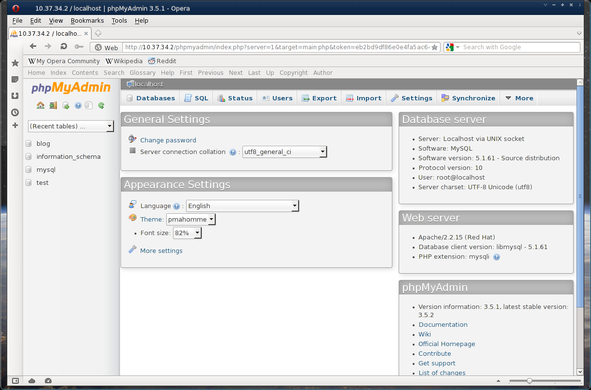
Fig.01: phpMyAdmin in Action
Please note that you will be prompted for a username and password. You need to provide your database username and password to login into the user interface. If you want to manage all database use mysql admin user account called root. phpMyAdmin configuration file is located at /etc/phpMyAdmin/config.inc.php. You can edit this file using a text editor:
All directives are explained in Documentation.html and on phpMyAdmin wiki.
# vi /etc/phpMyAdmin/config.inc.phpAll directives are explained in Documentation.html and on phpMyAdmin wiki.
Check out related media
This tutorial is also available in video format:
(Video.01: Installing phpMyAdmin Demo)


 WARNING!